Understand your project
Inspect devices, program blocks and project structure through TIA Portal Openness.
 Get Cortex
 SOFTWARE FOR AUTOMATION ENGINEERS
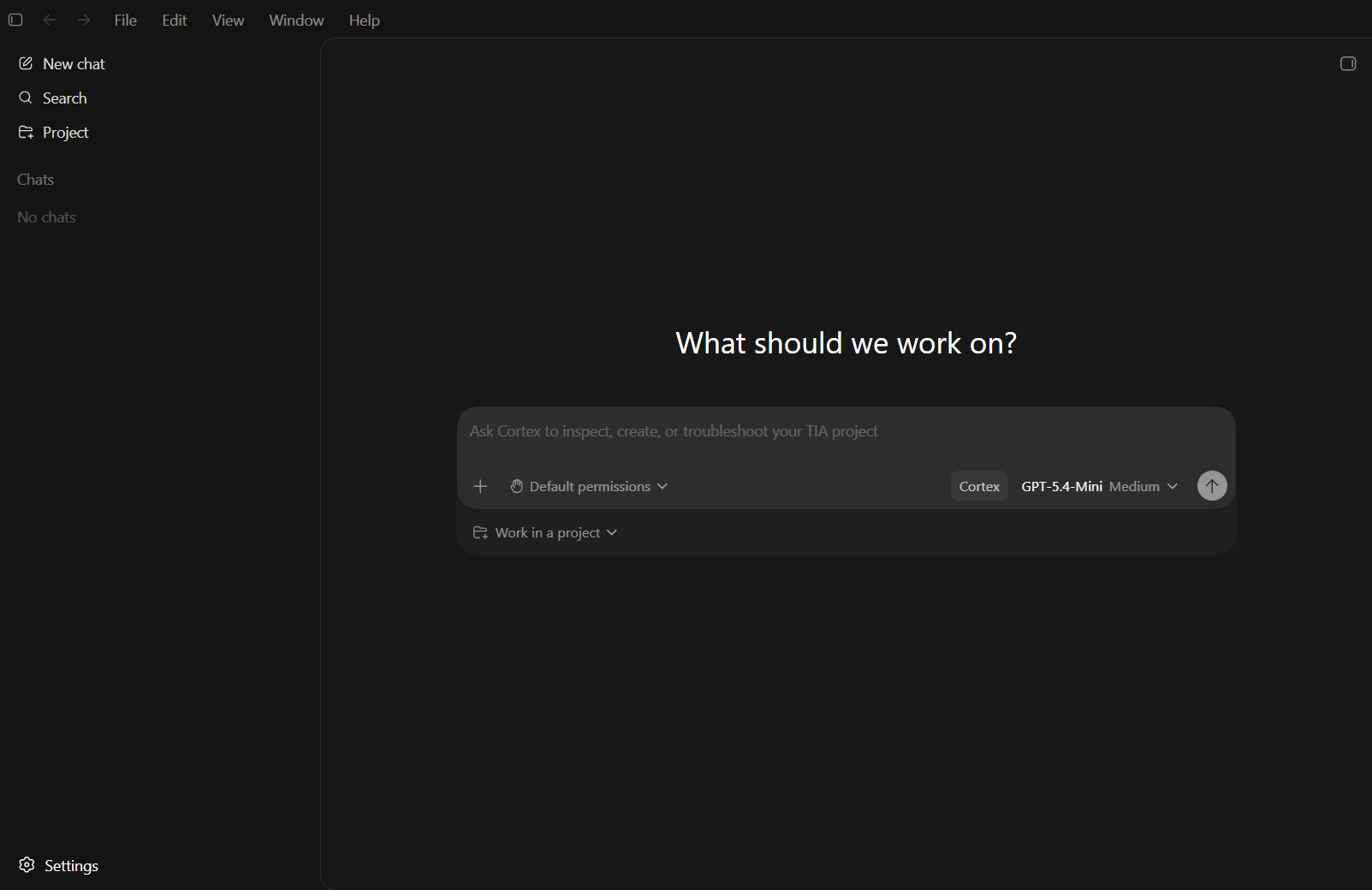
Meet Cortex, the desktop AI workspace from Vaste Orbit. Ask questions, inspect your project, and work with TIA Portal through one familiar conversation.
Windows x64 · TIA Portal V21 · Early access
FIRST-VERSION DEMO
See Cortex connect to a TIA project, check existing tables, and report the result of a tag-table task. No installation needed to watch.
Edited first-version recording with AI narration. It is not a test of the current release. The compile report shows zero errors and warnings with existing program blocks already up to date.
Tell us which task you repeat, your TIA version, and what a correct result looks like. We will check whether Cortex fits before arranging a paid evaluation.
Inspect devices, program blocks and project structure through TIA Portal Openness.
The adapter runs on your Windows machine and connects Cortex to your installed TIA Portal.
Review requested actions and choose local permissions. Siemens licensing still applies.
THE DESKTOP PACKAGE
Install Cortex with its TIA Openness adapter and local connector. No separate adapter download and no developer tools to compile.
Download Cortex for WindowsVersion 0.1.0 · 388 MB · Windows x64
Release notes · Verify download (SHA-256)
TIA Portal V21 with Openness and a valid STEP 7 license, Ubuntu 24.04 or later on WSL, and .NET Framework 4.8. A Cortex subscription does not include Siemens software or licenses.
FROM DOWNLOAD TO YOUR FIRST PROJECT
Your Siemens environment stays on your computer. Our team can help you check the setup before you start.
Contact Vaste Orbit to discuss your use, subscription and token allowance. You buy directly from the team. We create your account and activate the agreed access.
Use Windows 11, or Windows 10 version 2004 or later, on an x64 PC. Run the installer and follow its steps. Cortex and the adapter are installed together. Allow about 4 GB of free disk space for installation.
This early-access installer is not yet publisher-signed. If your organization blocks it, ask your IT team to review the release before installing.
Install TIA Portal V21 with Openness and the STEP 7 license for your PLC. Your Windows user needs membership in the Siemens TIA Openness group; ask your administrator to add it, then sign out and back in.
For the bundled connector, install Ubuntu 24.04 or later on WSL. Open PowerShell as administrator and run:
wsl --install -d UbuntuRestart if requested, open Ubuntu once and finish creating its user. An existing distribution must be named Ubuntu. Microsoft WSL guide · Siemens access guide
Open Cortex, choose Continue with Cortex, and sign in with the account supplied by our team. Open your project in TIA Portal, finish or close any setup wizards, and allow the Openness connection if Siemens prompts you.
“Connect to TIA Portal and show me the devices and program blocks in my project.”
Start with a copy of a project. Our live checks cover connection, inspection and existing compile status. Editing and online PLC downloads need separate validation with the required Siemens licenses.
LET’S TALK ABOUT YOUR WORKFLOW
Tell us what you work on. We’ll discuss the right subscription, token allowance and setup with you, then arrange purchase and activation directly.
rachidsahde@gmail.comAlready have an account? Sign in to your account